How Wannado Works
From activities to time tracking, learn how to organize your goals and track your progress
Wannado is a personal productivity app that helps you combine what you want to do, when you plan to do it, and how much time you actually invest. Unlike traditional to-do lists, Wannado connects your activities with a recurring weekly schedule and automatic time tracking—all in one place, offline-first.
The Building Blocks
Every activity in Wannado is built from three core components:
Activities & Notes
Start by creating an activity (e.g., 'Learn Guitar', 'Write Novel', 'Study Math'). Give it an emoji, title, color, and achievement description. Add rich notes to capture ideas, progress, or next steps.
Tasks
Break your activity into concrete tasks. Each task can have a due date, time estimate, and budget. Mark tasks as done as you complete them, and track the work sessions invested in each.
Weekly Schedule
Define recurring time blocks (e.g., 'Monday and Wednesday, 9 AM–11 AM') when you plan to work on this activity. Weekly times act as your visual calendar commitment and help the scheduler auto-generate your daily plan.
How Wannado Stores Your Progress
At the data level, every activity contains the same structure so tracking stays consistent over time:
Activity
Identity and planning context: avatar, title, color, achievement, label, daily session goal, weekly goal, and monthly guide.
Tasks + Weekly Schedule + Notes
Execution plan: tasks for concrete outcomes, notes for context, and weekly schedule times to define when in the week you should work on that activity.
Work Records
Evidence of effort: every timer session or manual entry creates a work record with start, end, and minutes worked. Those records feed your goals, Progress and the Copilot.
Understanding Session Length, Goals & Pace
Wannado helps you set and track work pace at three levels:
Daily Session Goal
Set a target duration for a work session (e.g., 1 hour per day). This helps you commit to focused blocks without overload.
Weekly Goal
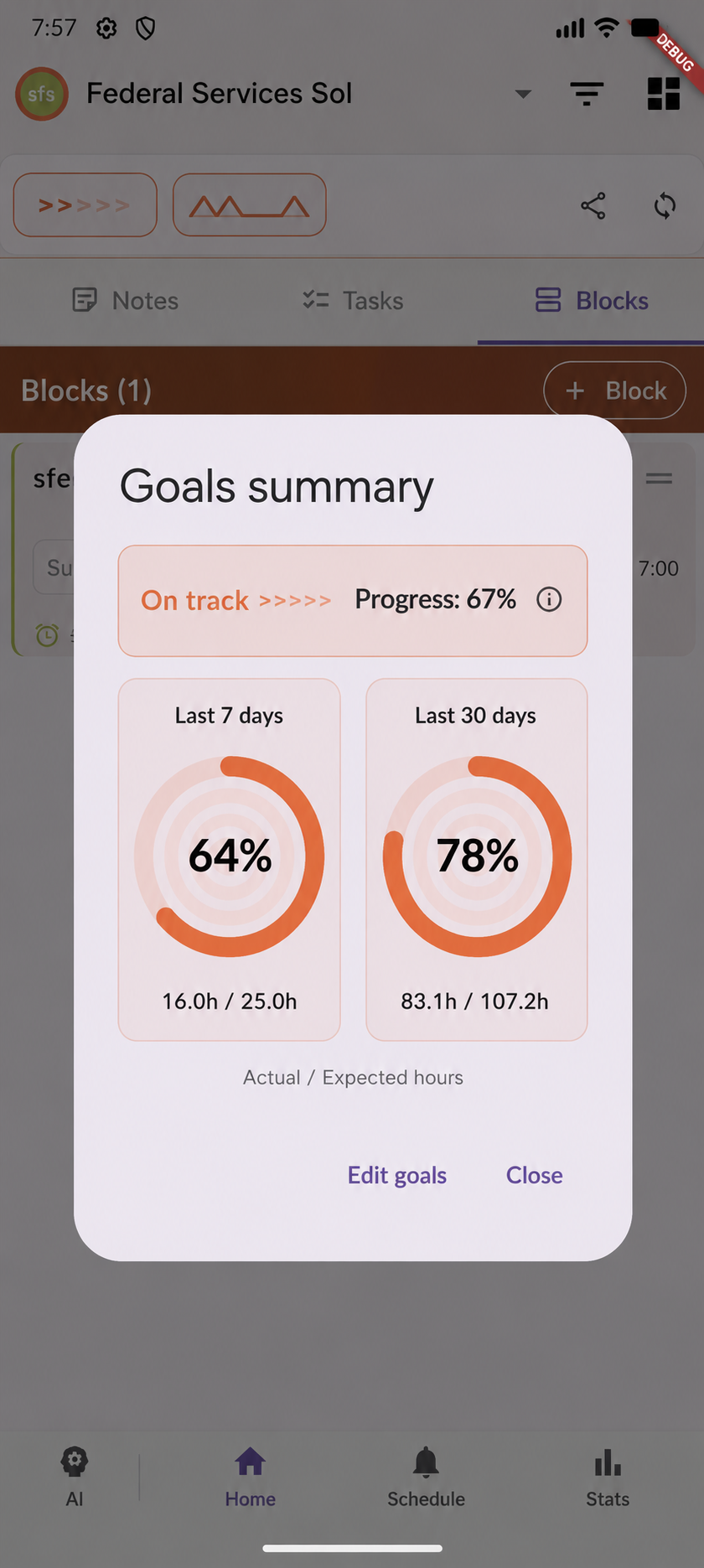
Define a weekly target in hours (e.g., 10 hours per week). This becomes your main pace metric, visible in Progress and the pace indicator.
Monthly Guide
Automatically computed from your weekly goal (weekly ÷ 7 × 30). Gives a long-term projection to help you plan quarterly milestones.
Your Pace
On Home and in Progress, you'll see the pace indicator:
>>>>> (full) | >>>>> (partial) | >>>>> (empty)
The more ">" symbols shown, the closer you are to your weekly goal. This visual gives you instant feedback on your pace.
The User Workflow: Step by Step
Step 1: Create Your Activity
Tap the '+' button to add a new activity. Choose an emoji (🎯 🎸 📚), give it a title and color. Optionally assign a label (Trabajo, Studio, Lifestyle, or Others) for better filtering. Set your daily session goal and weekly hour target.
Step 2: Add Tasks & Notes
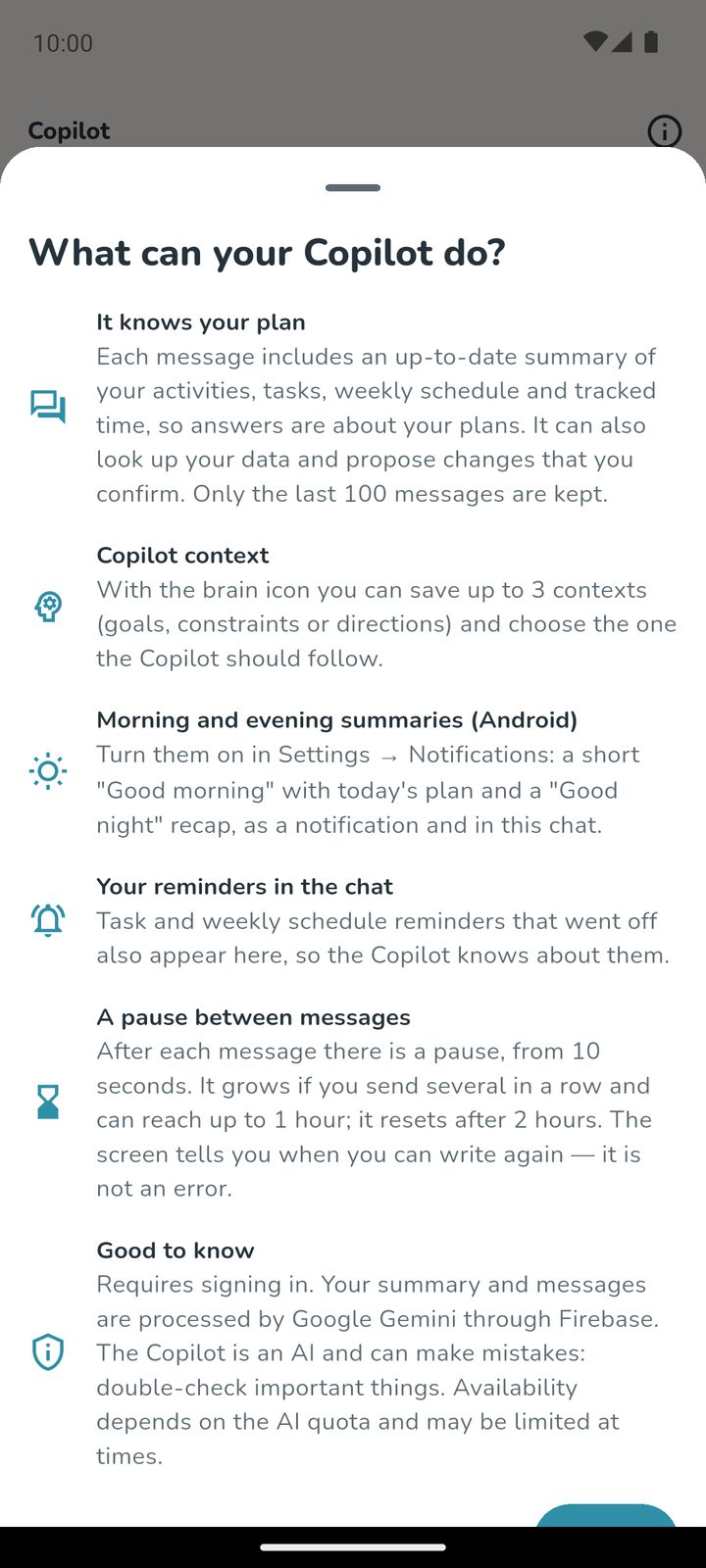
Inside the activity, add concrete tasks ('Learn C chord', 'Record practice session'). Optionally schedule them with date/time and set a time estimate. Add activity notes to capture goals, tips, or progress updates. Notes can be rearranged and edited anytime.
Step 3: Set Up Your Weekly Schedule
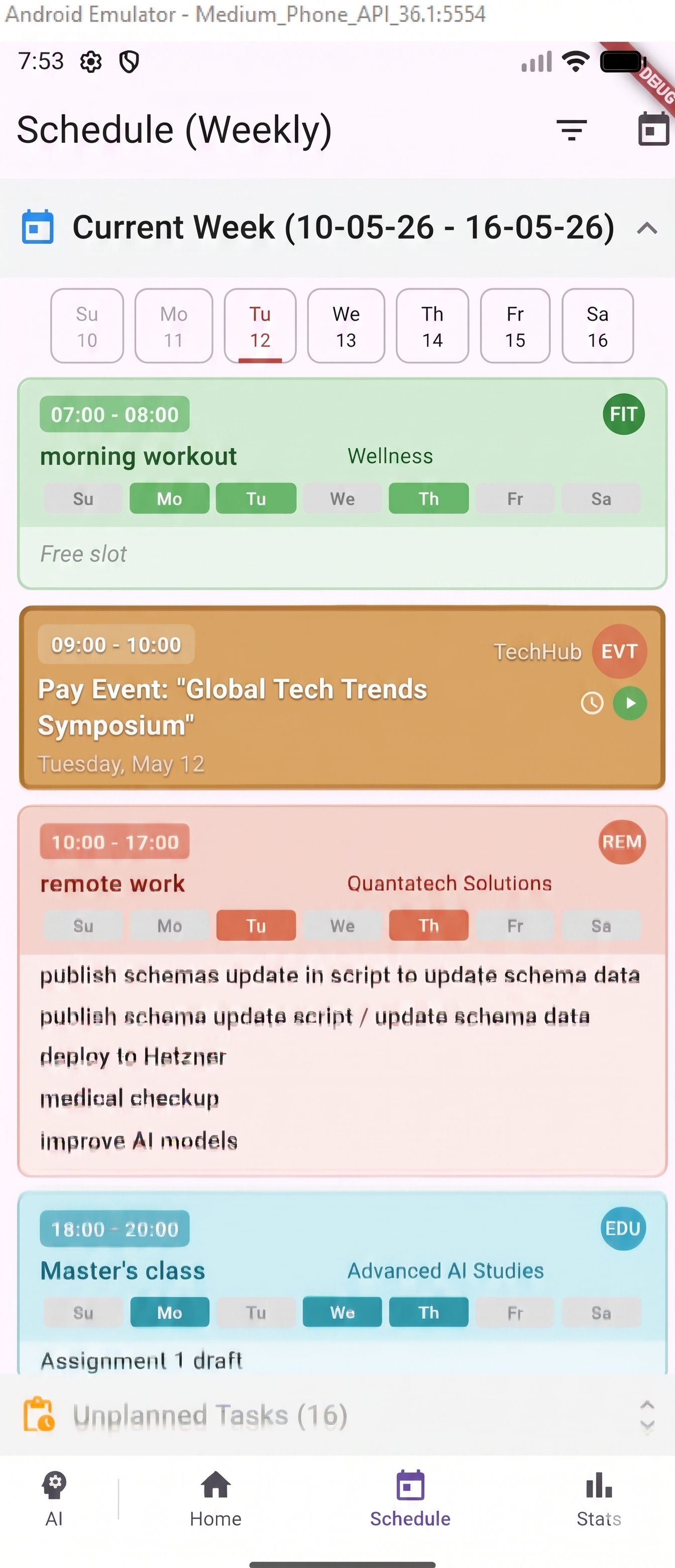
Create recurring weekly times for your activity (e.g., 'Monday & Wednesday, 6 PM–7 PM'). These weekly times appear on your calendar and help the app auto-generate your daily plan by suggesting tasks during available time windows.
Step 4: Record Your Work
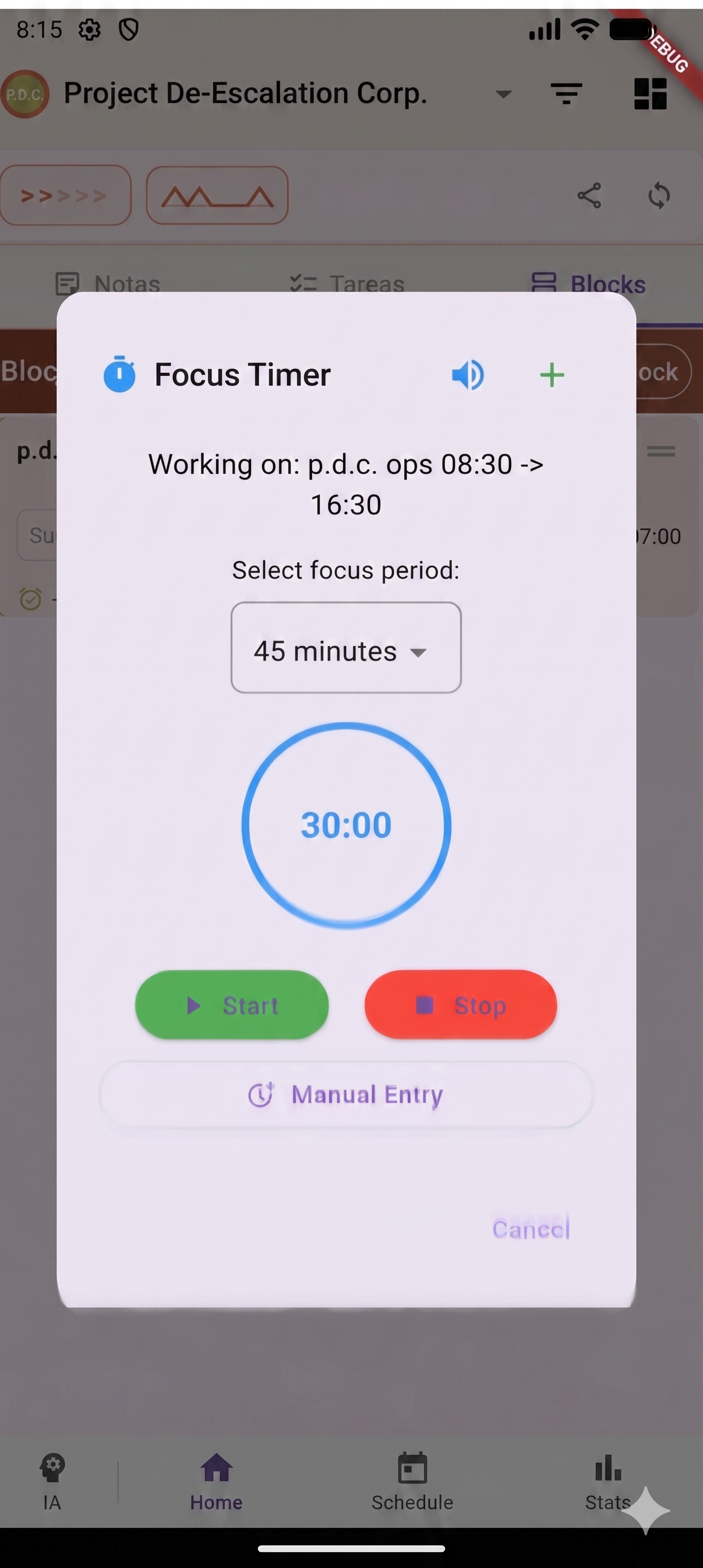
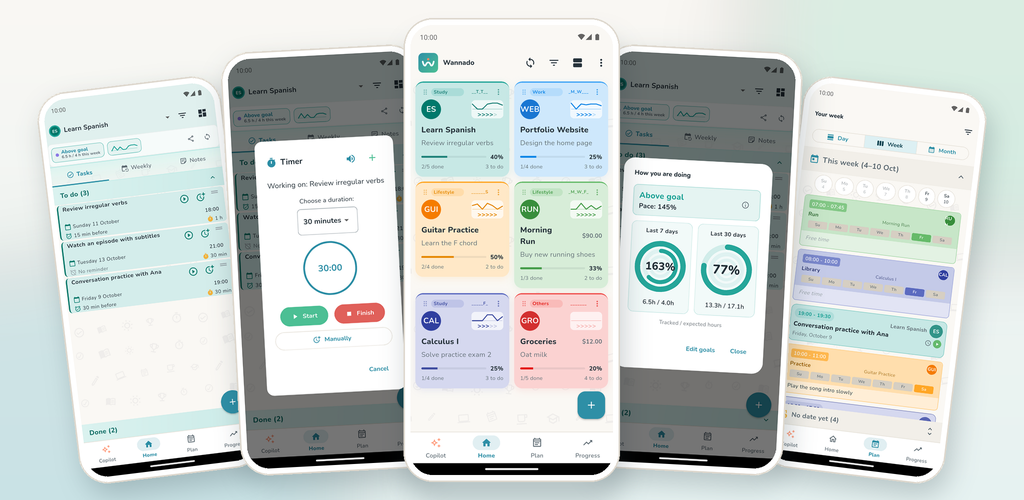
Start work on a task by tapping the ▶ button to launch the countdown timer. Set a duration ('1 hour', '30 minutes') and let it count down. When done, the app records a session with your start time, end time, and minutes invested. Alternatively, add manual work entries using the clock picker to select a custom start time and duration.
Step 5: Review Your Progress
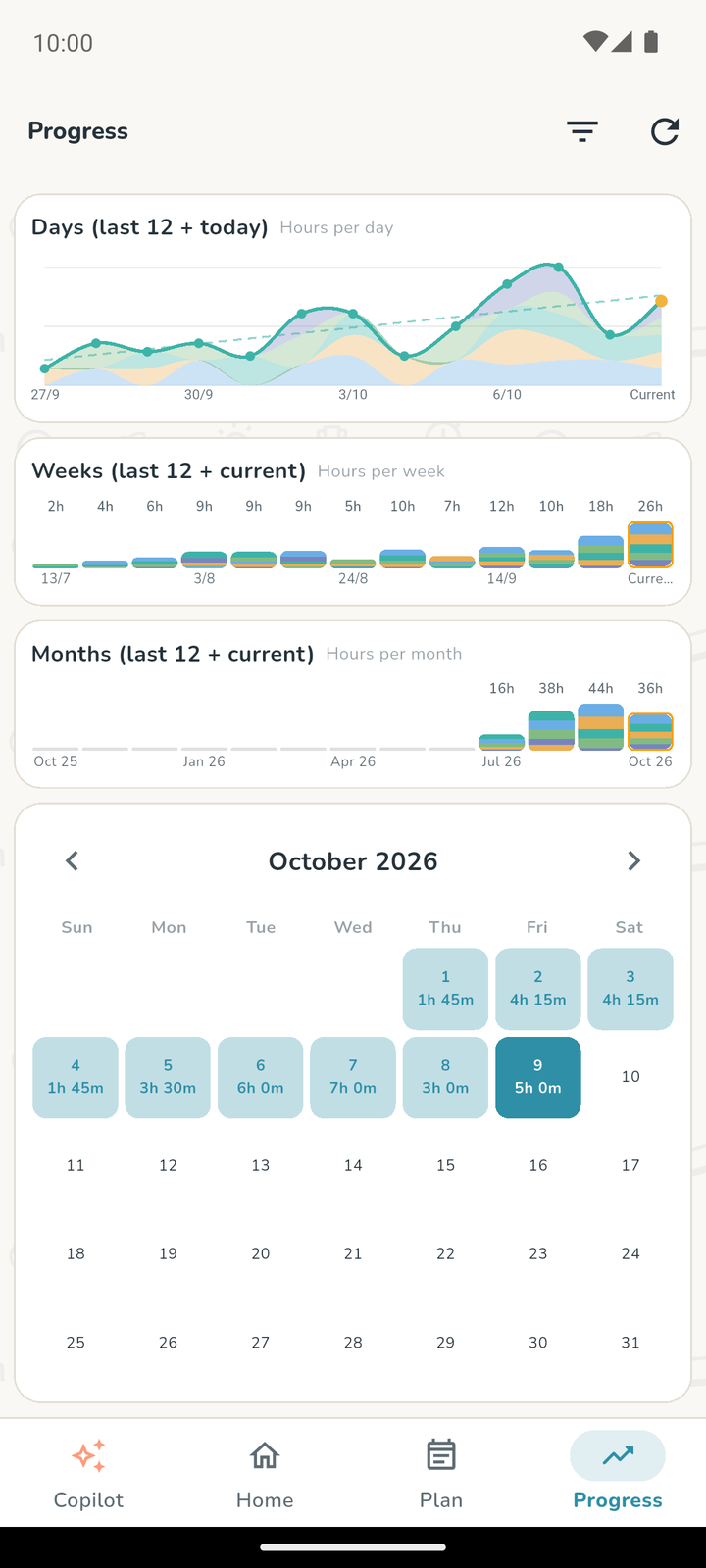
Check the Progress tab to see a heatmap of work by day, your weekly/monthly totals against goals, and breakdowns by activity. Use filters to focus on specific activities or labels (Trabajo, Studio, Lifestyle). The pace indicator shows you at a glance if you're on pace.
Simple vs. Advanced Home Views
Wannado offers two ways to view your activities. Re-tap the Home tab at the bottom to toggle between them:
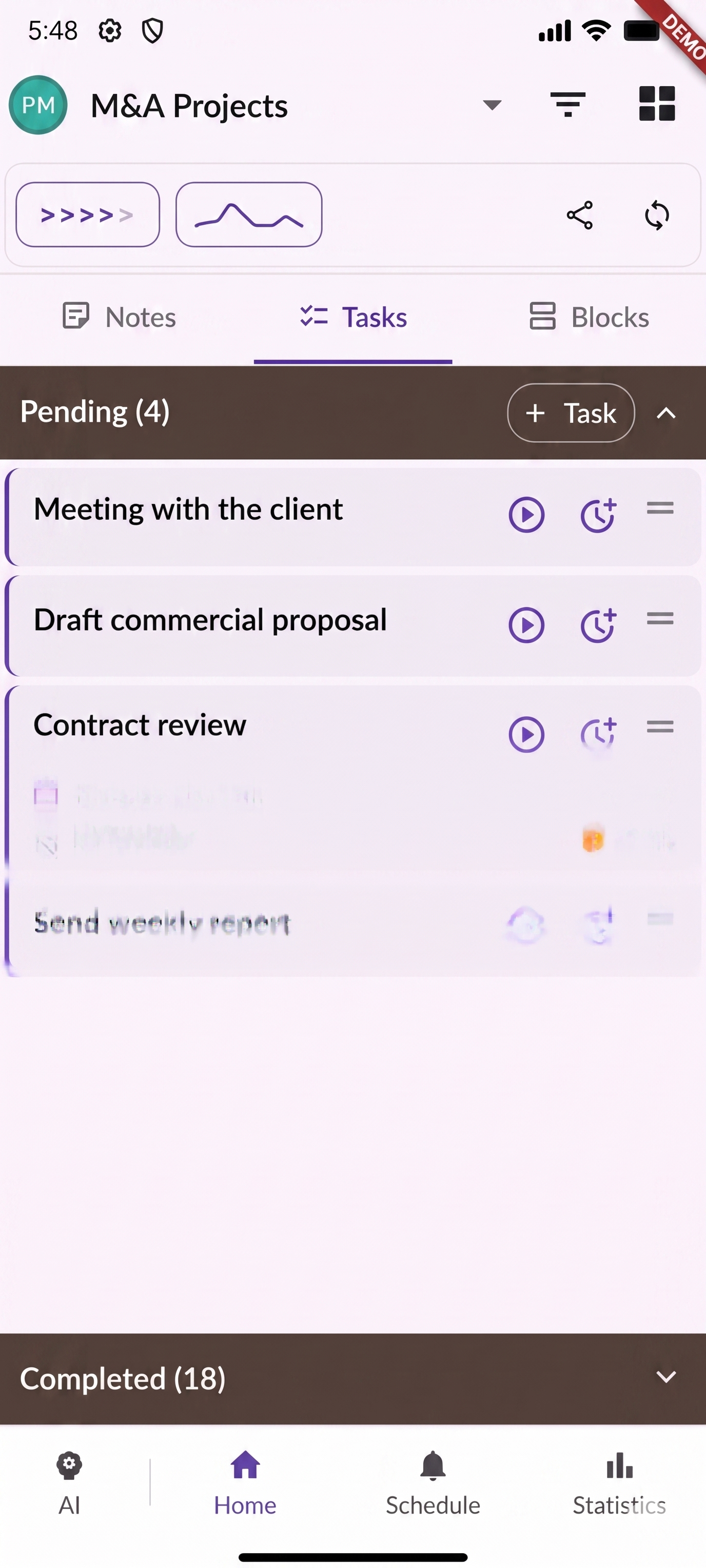
📋 Simple List View
(Default for new users)
- Vertical list of activities
- Each activity shows tasks, weekly schedule & notes tabs
- Quick add/edit/delete controls
- Perfect for focus & simplicity
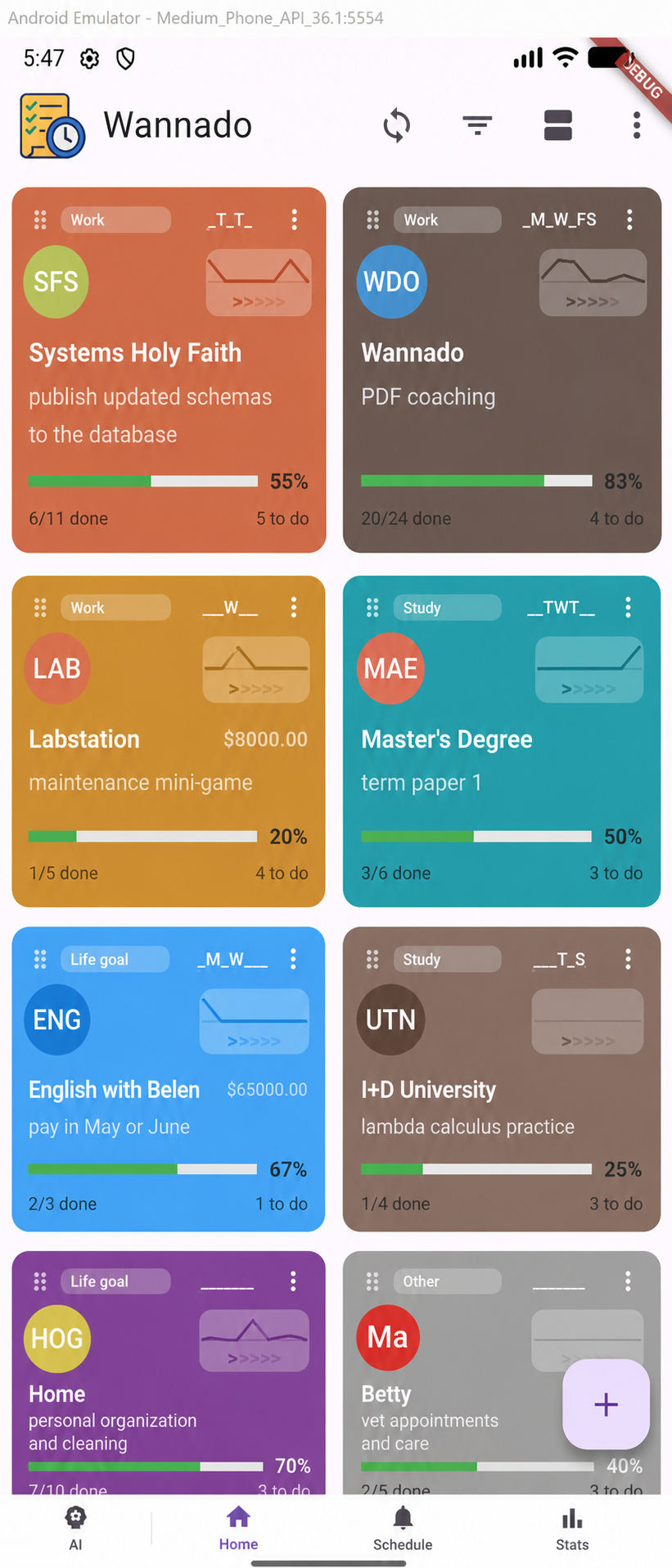
🎨 Advanced Grid View
(Opt-in for power users)
- 2-column responsive grid
- Each activity is a visual card
- Drag-and-drop to reorder
- Shows progress & pace indicator
Daily, Weekly & Monthly Schedule Views
The Plan tab shows your auto-generated plan combining scheduled tasks and your recurring weekly schedule:
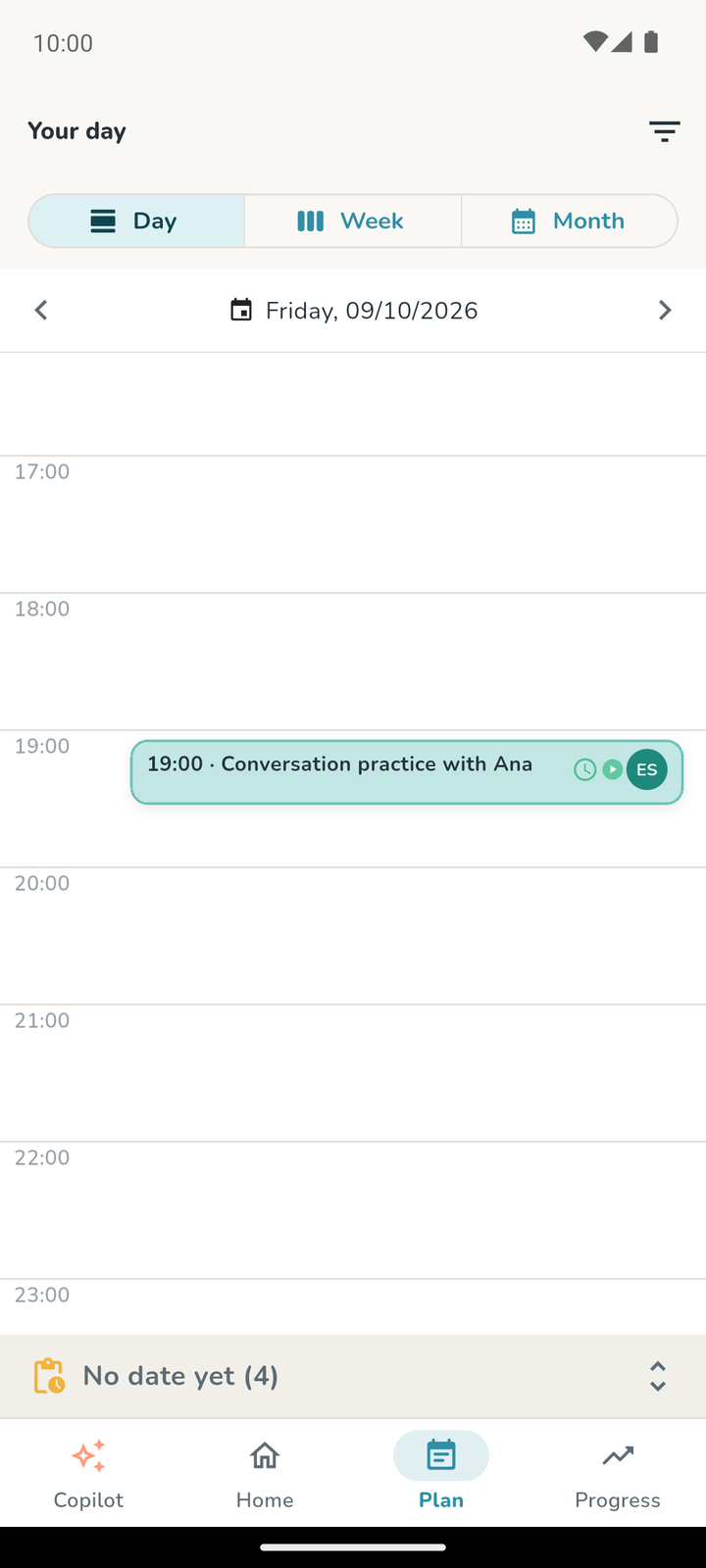
📅 Daily View
See today's schedule hour by hour, with your weekly schedule and any scheduled tasks listed. Unplanned tasks are auto-suggested in available time gaps.
📊 Weekly View
Grouped sections show your week: Due Tasks (overdue), Current Week, and Next Weeks. Completed weeks are hidden. This helps you prioritize what's urgent vs. what's coming.
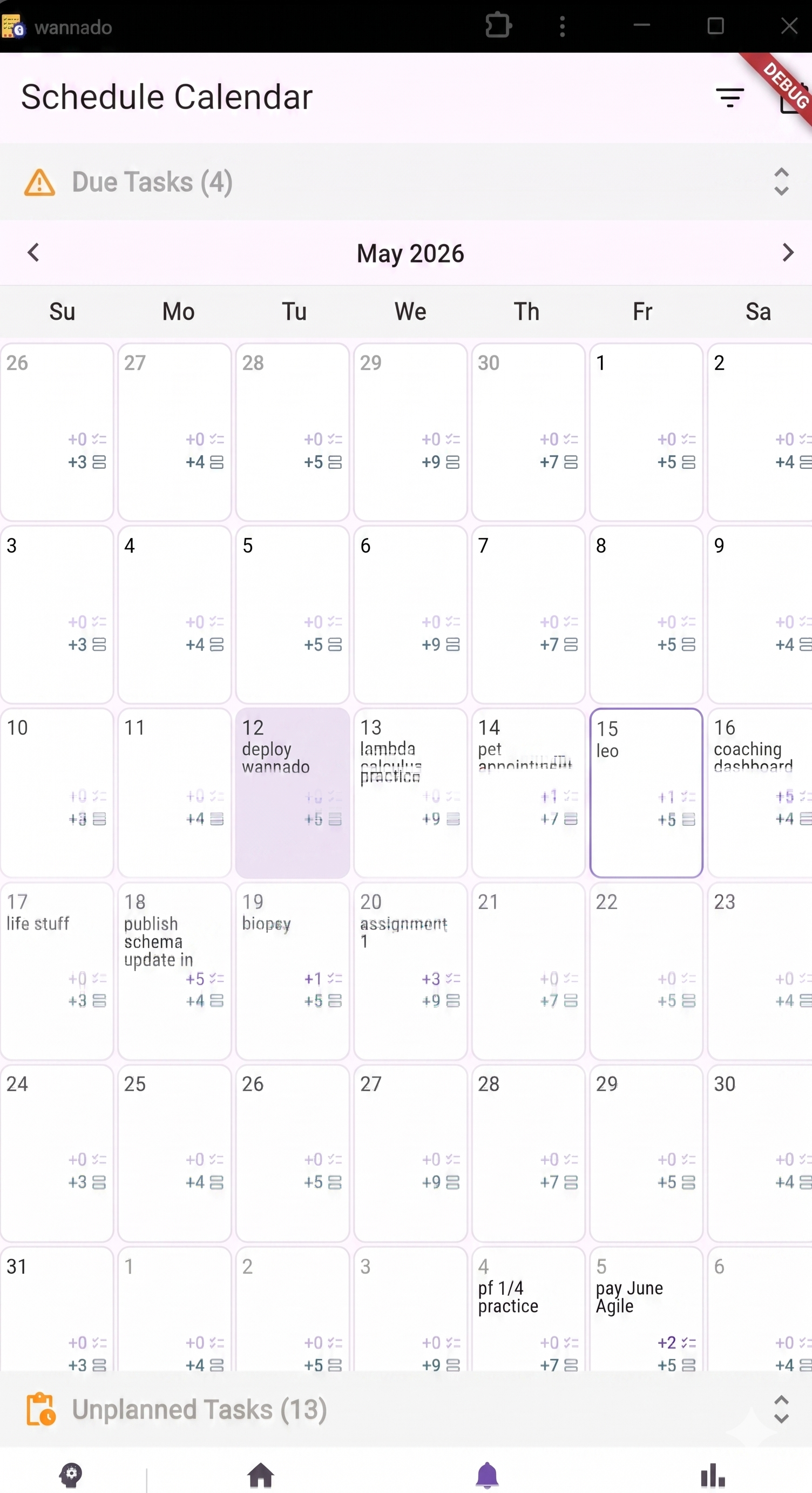
📈 Vista Mensual
See a calendar-style month view of your activities, with color-coded indicators showing your work pace each day. Useful for spotting patterns and ensuring balanced effort.
Statistics & Performance Tracking
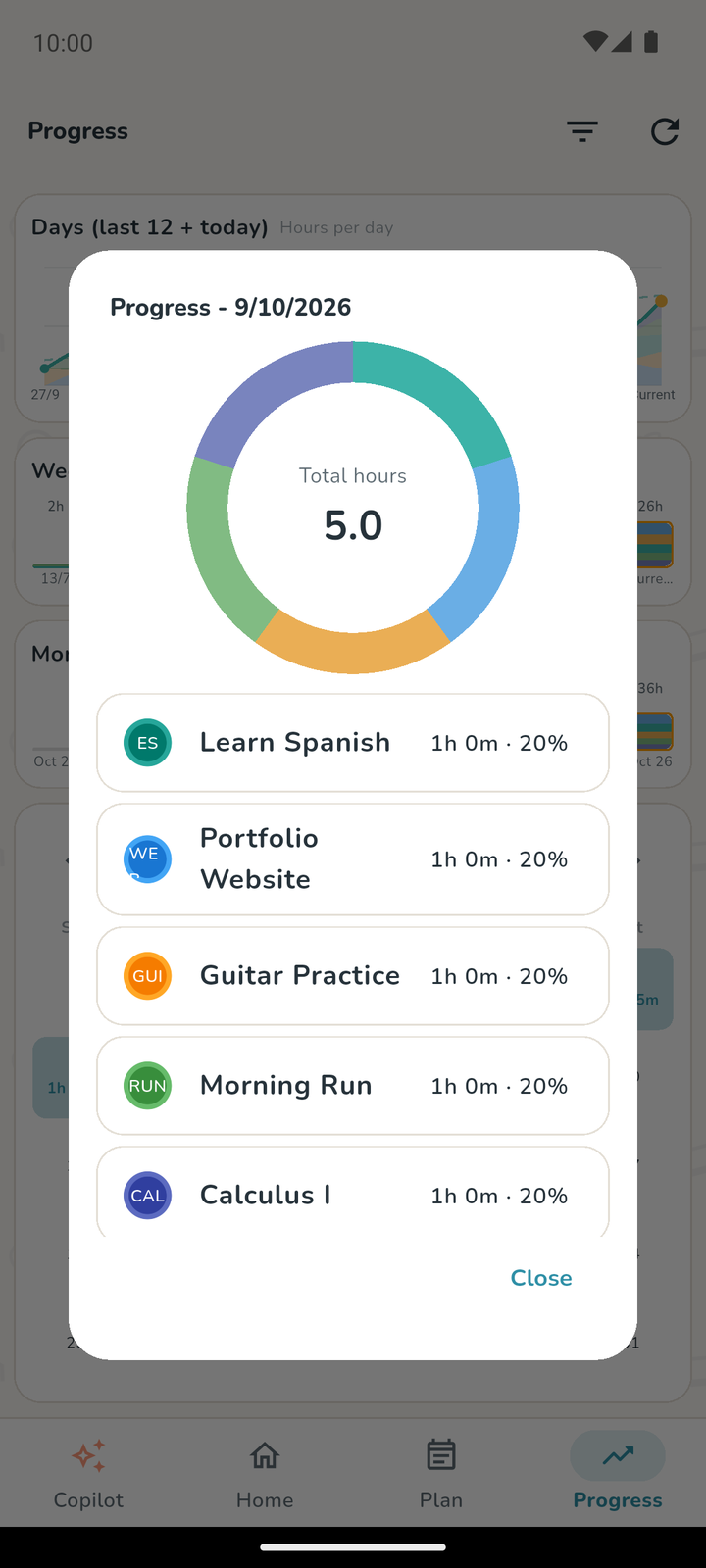
The Progress tab gives you deep visibility into your work patterns:
🔥 Heatmap by Day
See a calendar heatmap showing work intensity for each day—green for high effort, yellow for medium, lighter shades for low. Instantly spot your work rhythm and identify gaps.
📊 Period Breakdown
Toggle between Current Week, Current Month, and Custom ranges. See total hours worked, percentage of goal achieved, and per-activity breakdowns. Understand where you're investing time.
🏷️ Filter by Activity & Label
Apply filters to see stats for specific activities or labels (Trabajo, Studio, Lifestyle). Combine filters to answer questions like 'How many hours did I spend on Trabajo activities this week?'
AI Copilot
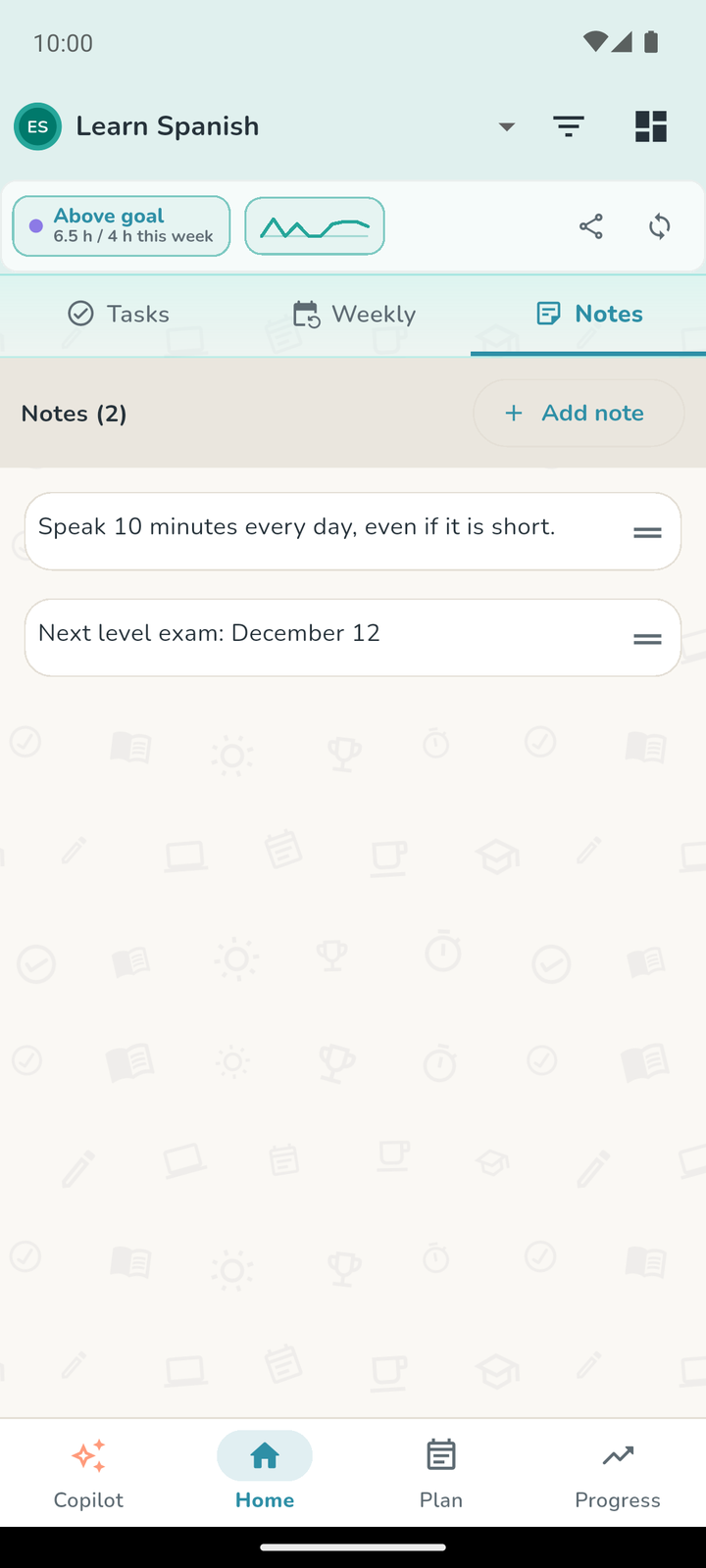
Wannado includes the AI Copilot to help you stay on track.
🤖 Generic AI Mode
Activation Gate: After ≥7 days of app usage AND ≥70 hours of recorded work, the IA tab unlocks.
How it works: Wannado generates a snapshot report of your current activities (goals, tasks, weekly schedule, recent sessions), sends it to Gemini AI, and returns a suggestion.
Cooldown: You can request a new suggestion every 24 hours. The app prevents spam and ensures meaningful feedback over time.
AI Copilot Workflow
- Generate Report: Tap 'Generate Report' to create a snapshot of your current activities (goals, tasks, weekly schedule, and work history from the past 12 days).
- Send to IA: The report is sent to Gemini AI.
- Receive Suggestion: The AI returns a text suggestion (e.g., 'You've been consistent with Study activities—consider raising your weekly goal to 12 hours').
- Review & Act: Read the suggestion in the IA tab, apply insights to your activities, and come back next time the cooldown expires for fresh feedback.
Frequently Asked Questions
Session length is the ratio of hours worked in the current week to your weekly goal. If your goal is 10 hours and you've worked 7 hours so far, you're at 70% of your target. The pulse indicator (>>>>>) updates daily as you log work.
Yes! You can share an activity by email. Existing Wannado users will be invited as editors; new users will receive a pending invite. Once they accept, all tasks, weekly schedule, and work history are visible to both of you in real-time.
Wannado is 100% offline-first. All your activities, tasks, weekly schedule, and work records are stored locally on your device. You can work completely offline with no loss of functionality. When you reconnect and sign in, Wannado automatically syncs your data with Firebase in the background.
Go to Settings > Export/Import. You can download your entire database as a JSON file. Automatic backups are also created before each import. You can store backups on cloud storage (Google Drive, Dropbox) for additional safety.
Yes! The app supports both English and Spanish. You can switch languages anytime from Settings without losing any data. The Wannado website also supports EN/ES.
To unlock the AI Copilot, you must meet two thresholds: (1) Use Wannado for at least 7 days, and (2) Log at least 70 hours of work across all activities. Once both are met, the IA tab unlocks and you can start using it. The gate ensures you have meaningful data before suggestions begin.
Yes! All core features (activities, tasks, scheduling, timer, stats, AI Copilot) are free forever on the web. Android Pro adds extended AI usage, notifications and sync for USD 20/year or USD 2/month (2026 promo, regular USD 50/year · USD 5/month). AI usage limits depend on the user's profile, plan and corporate usage, so we can offer the best experience while keeping AI service costs low. You'll never be forced to upgrade.
Ready to Get Started?
Download Wannado today and start organizing your activities, planning your time, and tracking your progress.
Back to Home